
VISION
THERE’S NO PLACE LIKE HOME
Range Rover Infotainment System
APPLE CARPLAY / ANDROID AUTO
INFOTAINMENT UPGRADE
New Infotainment for Your Classic Range Rover
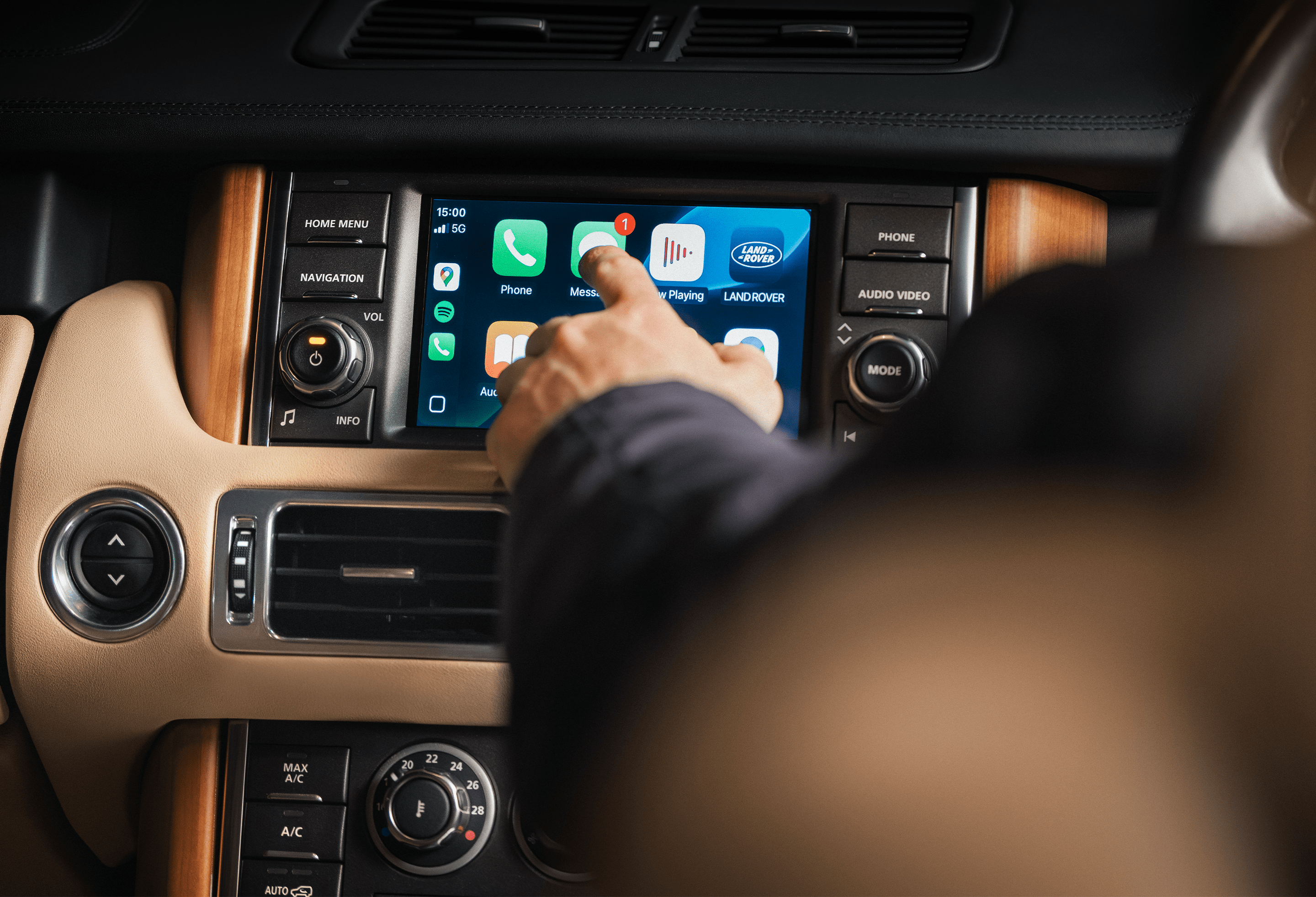
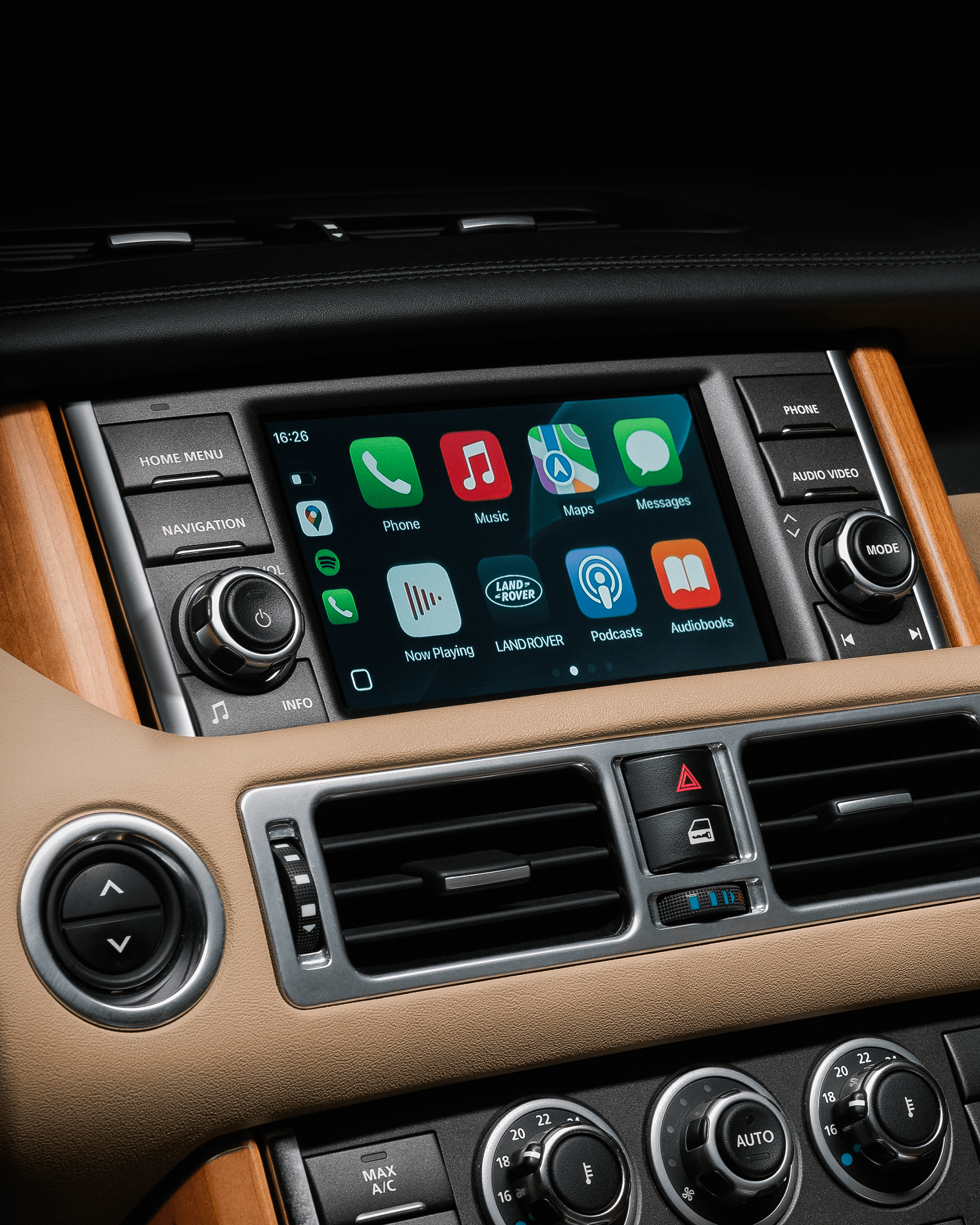
Land Rover Classic is now offering an infotainment upgrade for third-generation Range Rovers produced between 2010-2012*. Owners can now enjoy a modernised Range Rover Infotainment experience through the original touchscreen, seamlessly blending period‑correct hardware with contemporary functionality.
The upgrade retains all existing vehicle features - including the superb sound quality of the original audio system - while adding access to enhanced media streaming, connected navigation, and updated in‑car digital services through the new Range Rover Infotainment interface.
For ultimate peace of mind, all parts are covered by a JLR aftermarket parts and accessories warranty, lasting two years in the UK and Germany.
This system is now available for fitment by Land Rover Classic at our specialist workshop.
Contact us to arrange your system upgrade.
Frequently Asked Questions
How can I link my phone to the System?
You can find out how to link your Apple/Android device to the system, here.
Into which vehicles does the Range Rover Infotainment System fit?
This system fits into 2010 to 2012 Range Rover L322 with and without Dual View Screen.
How long does it take to install the system?
It takes about a full working day to install the system.
Will my phone work with the system?
The system will work with any iPhone running iOS13 or later.
The upgraded Range Rover Infotainment system is designed to connect with most modern smartphones using standard Bluetooth features for calls, media streaming and navigation audio. Compatibility may vary depending on the device and operating system version.
Will the Range Rover infotainment system change the appearance of my car?
No. The system integrates with the existing Range Rover touchscreen with no visible changes to the interior. All new functionality is delivered through the existing Range Rover Infotainment interface, maintaining the original look and feel of the cabin.
Where can I get the system installed?
JLR Classic are only offering the system as installed at JLR Classic approved workshops.
What extra leads or adaptors do I need to use the system?
You will just need your original phone USB cable. Non original cables may work but can cause connection problems.
The system has a USB A port in the cubby box for connection and comes with a USB C to A adaptor if your phone has a USB C cable.
Can I charge my phone whilst using the system?
Yes, you can either via the USB port in the centre armrest cubby box or via the original Range Rover USB port also in the centre armrest cubby box.
Do I need to have my phone connected via USB cable to use the system?
No, once your phone has been connected once during the set up process it will work wirelessly with the system.
Who makes the Range Rover infotainment System?
We are using a UK based company to provide an integrated system which retains the appearance and functionality of the original Range Rover touch screen and infotainment system.
Can I continue to use the standard Range Rover Bluetooth connection alongside the upgraded system?
Yes, you can. The upgraded Range Rover Infotainment system allows you to use Bluetooth for calls and media. When you are using the enhanced infotainment interface, phone calls and audio will be managed through that system.
The voice control button on the steering wheel will continue to operate with the standard Range Rover infotainment functions. When you are using the enhanced infotainment interface, voice control will not operate through the steering wheel button.
If you switch back to the standard Range Rover infotainment screens, phone calls and voice control will be managed by the original system as normal.
I have an iPhone, how do I connect my phone to the system?
1. Ensure both Wi-Fi and Bluetooth connections are turned on in the phone settings.
2. Ensure Siri is enabled.
Go to Settings, Tap Siri & Search,
Make sure “Listen For” or “Talk to” is set to : “Siri” or “Hey Siri” and also set Allow Siri When Locked.
3. Connect your iPhone ideally using a genuine Apple Lightning Cable to the single stand-alone USB Port in the arm rest cubby box. This is between the USB/iPod connection and the 12V power socket. Non genuine cables may work but cannot be guaranteed. If your cable has a USB C type connection use the supplied Type A to Type C adaptor
4. On your phone 2 pop ups will appear. “Allow CarPlay with “IDCORE” while phone is locked” and the “Use Wireless CarPLay with “IDCORE”?” Tap ALLOW to both and leave the lightning cable connected for at least 5 seconds.
5. After 5 seconds have passed, disconnect your iPhone from the Lightning Cable, then wait for up to 30 seconds, CarPlay should now load wirelessly. Please set a timer on you iPhone for 2 minutes and wait patiently, this step cannot be rushed. Older iPhones may take 2 minutes to connect and iPhone 7 and above usually takes less than a minute.
I have an Android, how do I connect my phone to the system?
1. Ensure your phone fully supports wireless AndroidAuto. Certain handsets do not work reliably with wireless AA and we recommend checking compatibility with your handset on the official AndroidAuto website. Samsung S Series or Google Pixel handsets are recommended for the best experience. Your Android device must be running Android 11 or later to support wireless AndroidAuto.
2. Enable Wi-Fi and Bluetooth on your Android Handset.
3. Enter the IDCORE interface menu – long press the Red “end call” button on the steering wheel.
4. On the IDCORE set up screen scroll down to “SmartPhone”. Press the screen and slide your finger up. In the SMART PHONE menu ensure ‘Android device’ is set to ‘AndroidAuto
5. On your Android handset, enter Settings-Bluetooth and search for ‘IDCORE
6. Tap on IDCORE, pairing popup will appear, select ‘Pair’
7. IDCORE will now appear as an active bluetooth connection.
8. Connection may take up to 2 minutes, whilst ‘Attaching AndroidAuto’ will appear on the screen whilst connection finishes.
9. AndroidAuto appears on screen and is ready to use. In some circumstances, you may need to tap allow to any notifications on the phone screen.
My phone won’t connect to the system, or has previously connected but now won’t connect.
- Remove the phone from the vehicle, close the doors and lock and arm the vehicle with the keyfob and wait approximately 1 minute. This will allow the system to shut down and switch off any phone connections that have been made. Unlock and enter the vehicle and turn the ignition on.
- Alternatively select the SETUP menu on the screen (long press the Red “end call” button on the steering wheel. ) and then scroll down and select SMART PHONE and tap REBOOT. Once the system is rebooted the phone should reconnect
- If this does not work enter your phone Bluetooth menu, find “IDCORE” and try connecting. Wait for 2 minutes.
I can hear the radio or CD, but not the audio from the upgraded system. How do I fix this?
The upgraded Range Rover Infotainment system uses the AUX input to play audio through the vehicle’s speakers. If you can hear the radio, CD or another source instead, the audio source in the standard Range Rover system needs to be switched to AUX.
To restore sound from the upgraded system:
- Press and hold the red hang‑up button on the steering wheel to return to the standard Range Rover infotainment screen.
- Select Portable Audio, then choose AUX as the audio source.
- Press and hold the red hang‑up button again to return to the upgraded infotainment interface.
- Audio from the upgraded system will now play through the vehicle speakers.
When I press the “Mode” button on the steering wheel I loose Sound on the upgraded system.
The upgraded system uses the Aux input into the Range Rover audio system. This needs to be selected as the Audio source in the Range Rover system. Pressing the “Mode” button changed the Range Rover Audio system source away from Aux to another source, i.e. Radio, or Camera or CD on a cycle, and this source will be heard over the audio system.
If this happens continue pressing the “Mode” button until it cycles round to Aux and the upgraded system or press and hold the Red hang up button on the steering wheel to switch back into the Range Rover system.
Select Portable Audio and then Aux. Then press and hold the Red hang up button on the steering wheel to switch back into the upgraded system.
The Aux port for the rear seats doesn’t work anymore and has been plugged with a rubber bung. Why is this?
The Carplay system uses the Aux input into the Range Rover audio system, as such the Aux input port in the vehicle is disabled. The rubber bung has been fitted to prevent inadvertent use.
When I come out of reverse gear the screen goes all fuzzy for 30 seconds or so.
You have the front camera input to the CarPlay system accidentally selected.
If you are in a Range Rover screen press and hold the Red end call button on the steering wheel and then,
If you are using CarPlay press the “Range Rover” icon in the menu screen.
If you are using AndroidAuto select Exit.
Press the Setup icon on the screen.
Scroll down – press the screen and slide your finger up and select the Front View Option. Ensure this is switched off.
Press the home button and then press either the highlighted CarPlay icon or the AndroidAuto icon.
When I first connect to the car, the display appears green or not fully coloured. Why?
This can happen if the vehicle battery is depleted as the system is unable to establish full video connection to the screen.
Start the engine and let it run for a few minutes then switch off, lock and arm the car and wait for 1 minute, then unlock and restart the car. Normal screen operation will be resumed.
The voice control button on the steering wheel doesn’t work with the upgraded system. Why?
The upgraded Range Rover Infotainment system does not use the voice control button on the steering wheel. Voice control functions are not supported through this button when you are using the upgraded interface.
The steering‑wheel voice control button will continue to operate as normal when you switch back to the standard Range Rover infotainment system.
The voice quality when making calls via Bluetooth is not optimal. How do I deal with it?
The voice quality can be influenced by many factors. In addition to differences in the quality of mobile devices, the coverage of the mobile network and a poor connection of the remote station may also play a role. Furthermore, the volume of the BT module may be set too low. Change it via the Settings menu/Volume/Bluetooth.
My partner and I both have our phones connected to the system. How do I ensure that my phone connects first when we both get into the car?
When more than one previously connected device is in the vehicle, the upgraded Range Rover Infotainment system will attempt to reconnect to a recognised device. Which phone connects first can depend on the order in which each device establishes a Bluetooth/Wi‑Fi connection.
To prioritise one phone, you can use either of the following approaches:
Option 1 - Set one phone as the primary wireless device
- Connect the primary phone using Bluetooth/Wi‑Fi only.
- Connect any secondary phone using a cable if needed.
- When connecting a secondary phone for the first time, decline any prompts that allow wireless connection. This prevents the secondary phone from attempting to connect wirelessly in future.
Option 2 - Control which phone is active when entering the vehicle
- Ensure only the primary phone has Bluetooth/Wi‑Fi enabled when entering the vehicle.
- Secondary phones should temporarily disable Bluetooth/Wi‑Fi (or use Flight Mode) until the primary phone has connected.
- Once the primary phone is connected, secondary phones can re‑enable Bluetooth/Wi‑Fi if required.
*Infotainment system is compatible with the following models: Range Rover Petrol 5Ltr (2010-2012) and Range Rover Diesel 3.6Ltr, 4.4Ltr (2010-2012).
Engine
5.0 litre petrol V8
Power
405 hp
Torque
515 NM
Wheels
16 inch



CLASSIC DEFENDER WORKS V8 ISLAY EDITION
EXCLUSIVELY YOURS
Islay Edition is limited to just 30 unique examples, with 17 available as a 90 short wheelbase and 13 as a seven-seat 110 wheelbase respectively. Each vehicle is a meticulously restored and rebuilt Classic Defender that has been expertly sourced by Land Rover Classic specialists.

SHADES OF ORIGINS
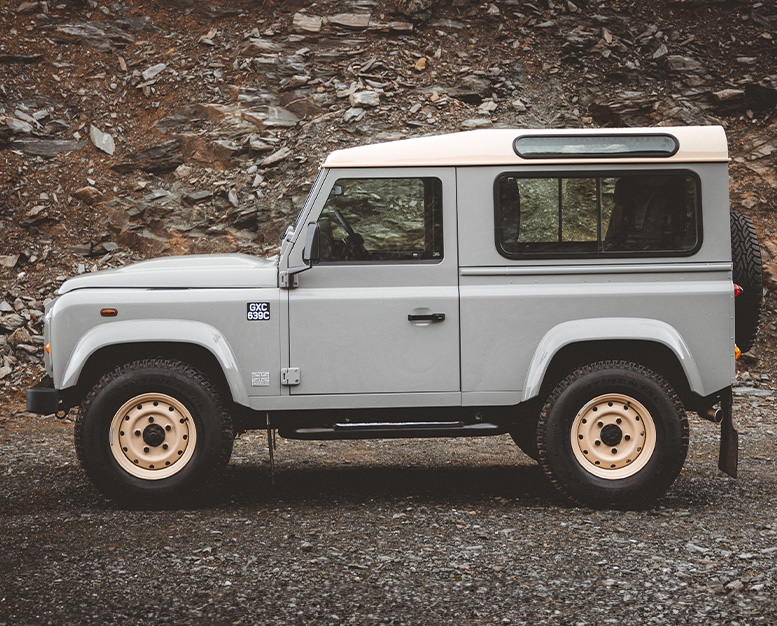
Informed by the Mid Grey exterior of the 1965 original, Islay Edition is finished in Heritage Grey with contrast roof and heavy-duty steel wheels in Limestone.
Complementing the iconic grille and heritage Land Rover badging, a bespoke side graphic reads ‘GXC 639C’. This is the registration of Spencer Wilks’ Series IIa.
EVERY STITCH A STORY
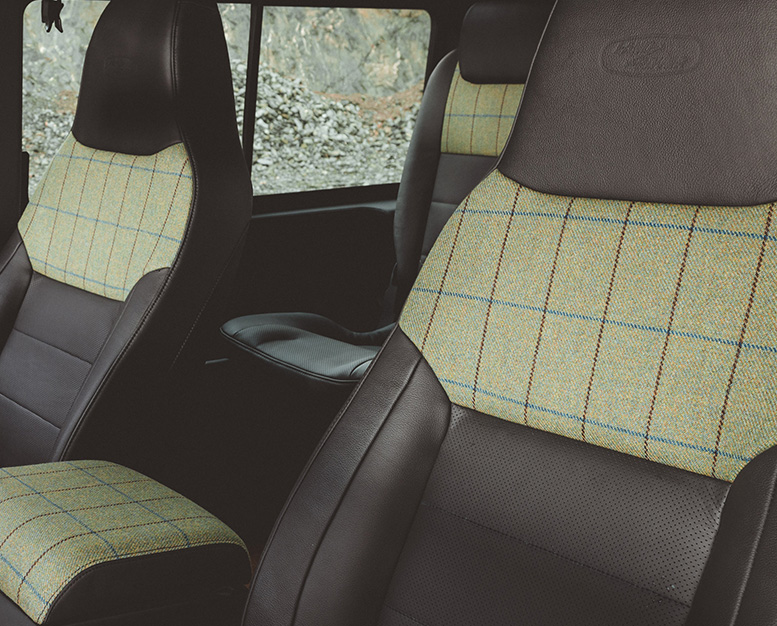
As an elegant gesture to the land that inspired its name, Islay Edition’s seats, door cards, central armrest and sun visor all feature a tactile tweed crafted by the Islay Woollen Mill.
Its earthy palette is a harmony of blue for the sea and the sky, purple for the local heather, and a subtle yellow for the peaty grasslands.
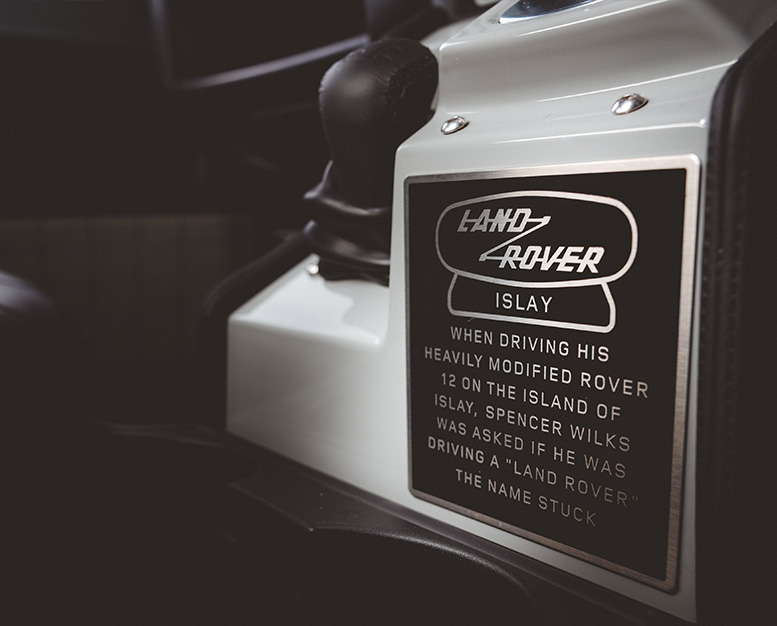
THE WORDS THAT CHANGED THE WORLD
Reminders of Land Rover’s legacy are judiciously placed around the Islay Edition’s cabin. This includes a plaque adjacent to the gearshift that tells the story of how the Land Rover name was born.
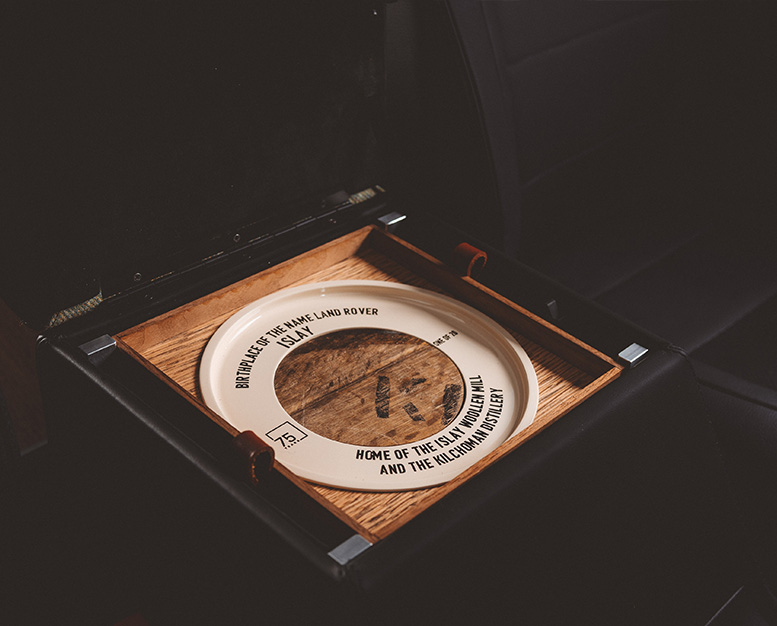
DISTILLED DETAILS
Reinforcing the link back to Islay Edition’s Hebridean heritage, the removable console tray – complete with leather tabs – features the oak of whisky barrels sourced from the local Kilchoman Distillery. Spencer Wilks’ granddaughter Kathy Wills established the distillery with her husband, Anthony, in 2005.
Within each tray, a unique wooden disc replicating the end of a whisky barrel showcases the vehicle as one of 30 limited edition examples marking 75 years of Land Rover.
About Us
JAGUAR LAND ROVER CLASSIC
Jaguar Land Rover Classic Parts was established to provide genuine parts for owners, caring for vehicles that have been out of production for 10 years or more. We provide the highest level of service and deliver tens of thousands of Genuine Parts to thousands of customers across the world, directly from the home of Classic.